Important Notice
We are currently using Season 21 Part 1–2, the newest MU version available. Since this version is still awaiting official Microsoft certification, your system or antivirus software may sometimes show a warning for the IGC.dll and game.exe files.
Don’t worry - our client files are 100% safe and do not contain any viruses or harmful software. These warnings are false positives and can happen with newer game files.
To make sure the game runs without any problems, please add the Flame MU folder to the exclusion list of Windows Defender and any antivirus program you are using.
Thank you for your understanding, and we hope you enjoy your time in the game!
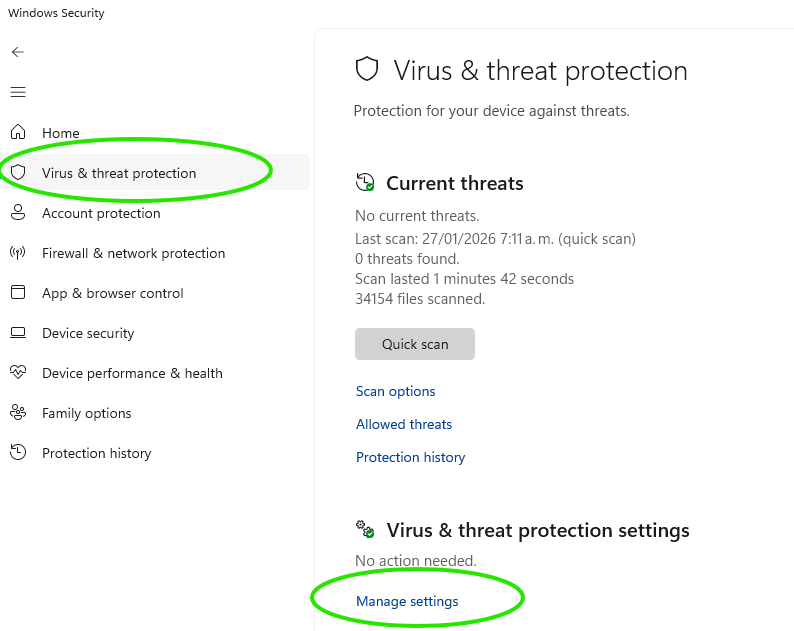
▶ Open Windows Security and go to Virus & threat protection.
▶ Click on Manage settings.
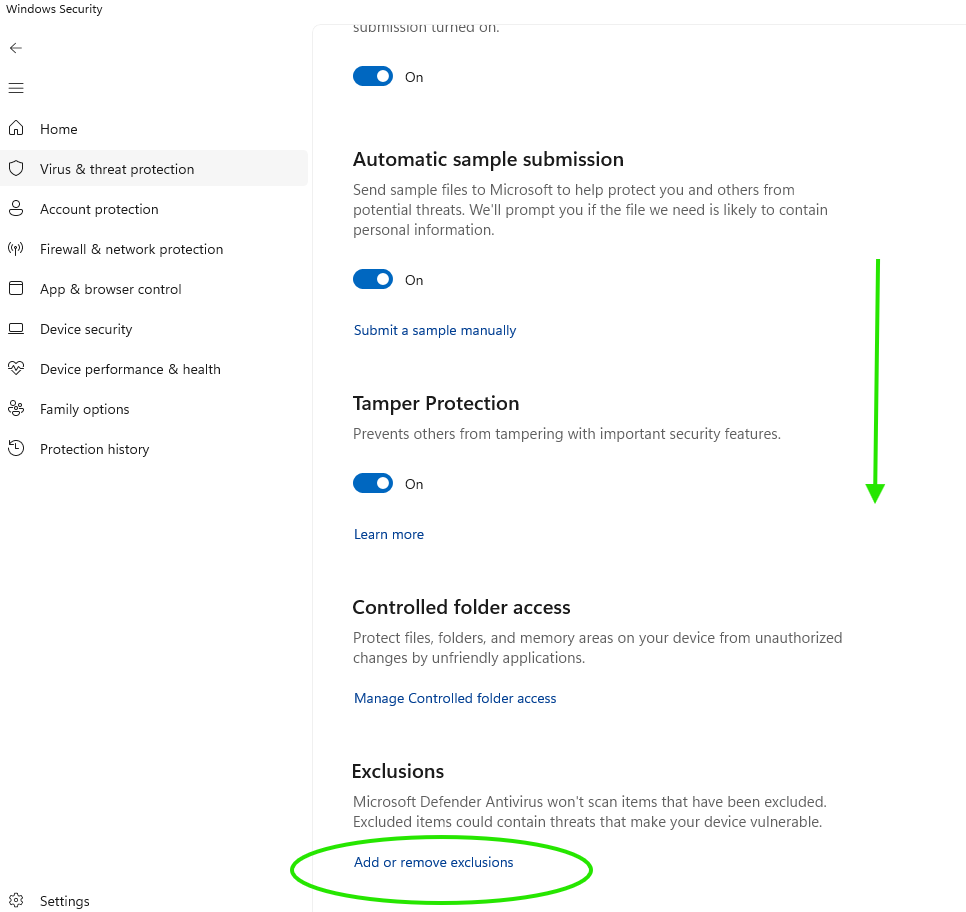
▶ Scroll down to Exclusions and select Add or remove exclusions.
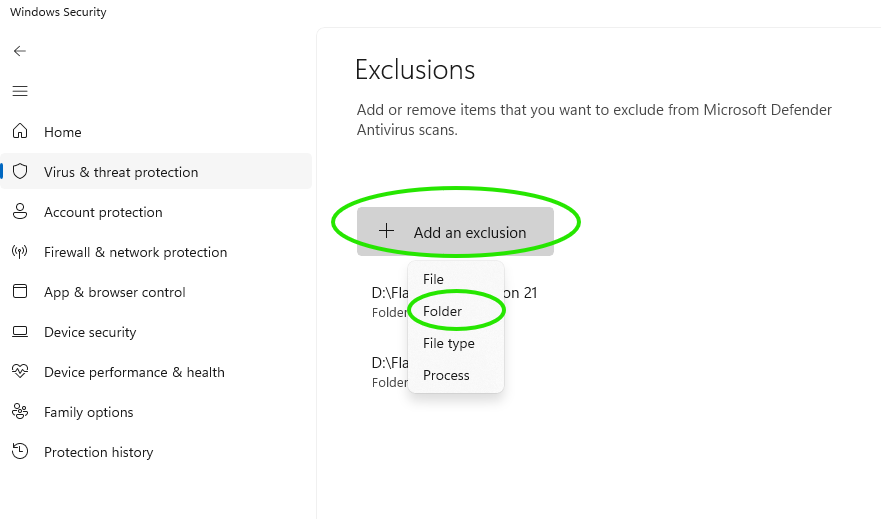
▶ Click Add an exclusion, choose Folder and locate your Flame MU installation folder.
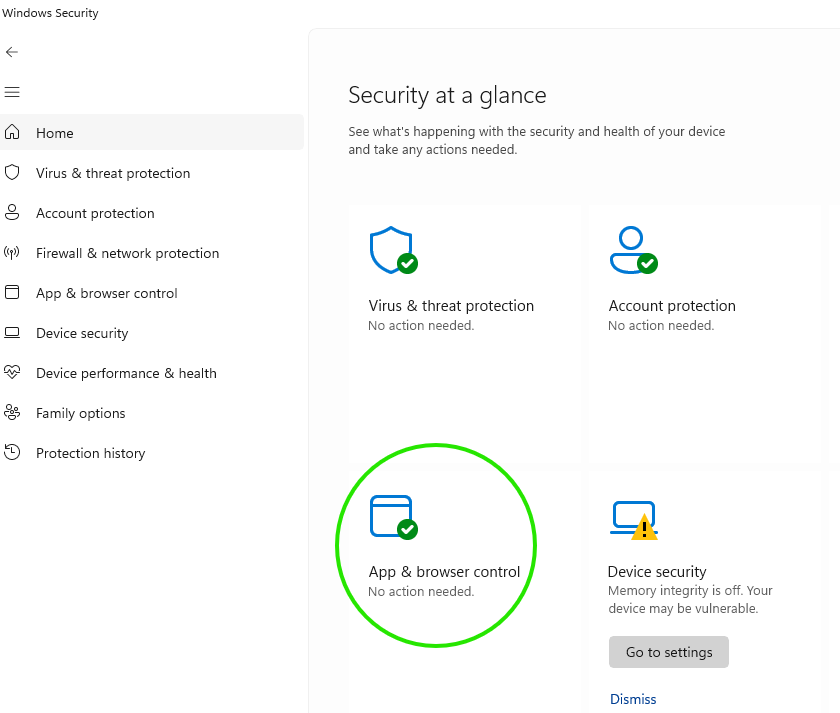
▶ Open Windows Security from the Start menu.
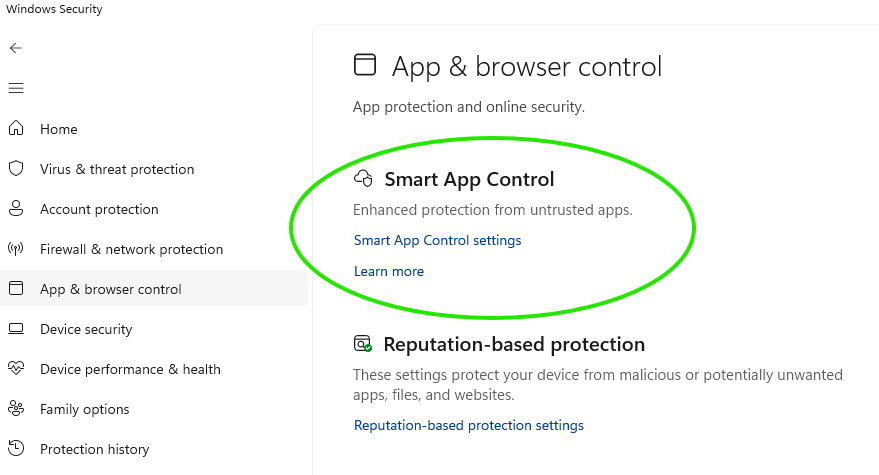
▶ Navigate to App & browser control.
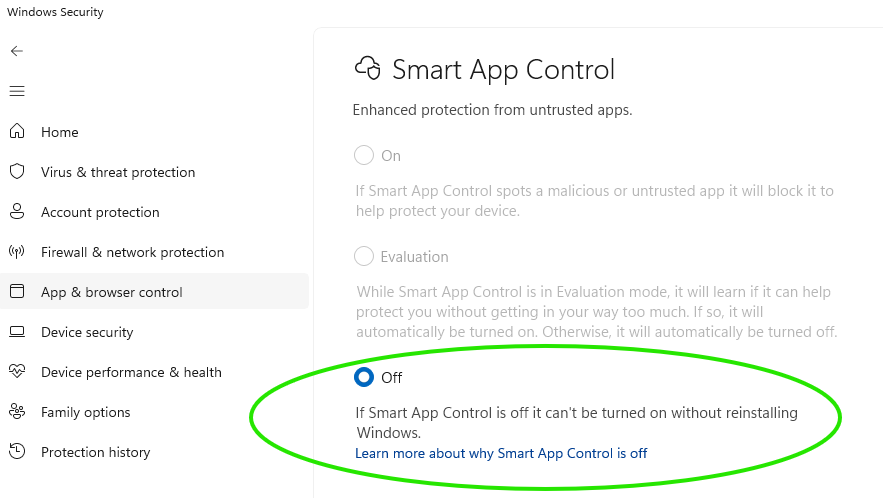
▶ Open Smart App Control.
▶ If it is enabled, turn it off.

▶ Start the game normally from the installation folder.
▶ The game should now run without any security warnings or blocks.
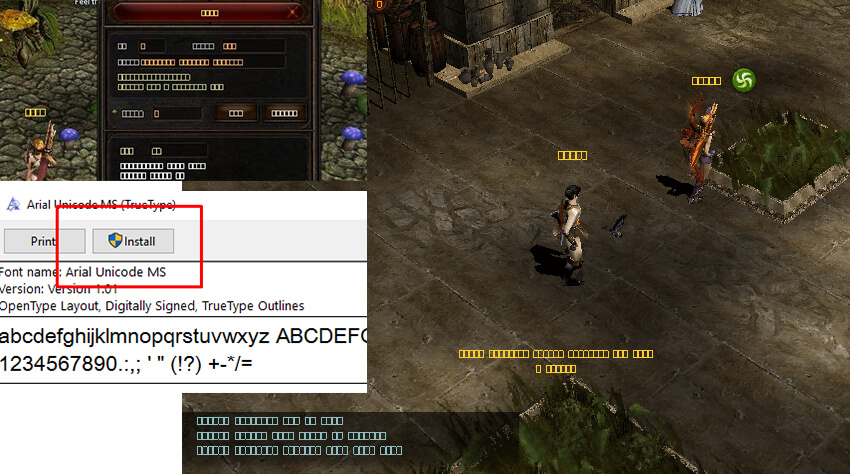
Step 2: Double click the file you just downloaded and choose Install
Optional: Alternatively you may download the missing font and copy it to C:/Windows/Fonts
System Requirements
- MINIMUM
- Windows 7
- RAM: 2 GB
- RECOMMENDED
- Windows 10 or higher
- RAM: 4 GB or higher
 Loading...